Forex Trading · lesson 11 of 33
Your Trading Platform: MT4, MT5, and TradingView Explained
Learn this in a 5-minute interactive lesson
Real charts and practice questions. Free, no sign-up needed.
What a platform is
A trading platform is the app or website where you see prices and charts, and where you place and manage trades. Your broker gives you access to one or more of these:
| MetaTrader 4 | MetaTrader 5 | TradingView | |
|---|---|---|---|
| Released | 2005 | 2010 | Charting site since 2011 |
| Made by | MetaQuotes | MetaQuotes | TradingView |
| Chart timeframes | 9 | 21 | Many, including custom ones |
| Pending order types | 4 | 6 (adds stop-limit orders) | Depends on the broker |
| Built-in economic calendar | No | Yes | Yes |
| How you trade | Through your broker's MT4 server | Through your broker's MT5 server | Through brokers that connect to it, or paper trading |
| Best for | Older setups and tools built for it | Most new accounts | Charting, analysis, alerts, and sharing ideas |
MetaQuotes stopped selling new MT4 licences to brokers years ago and pushes everyone towards MT5, but MT4 is still offered by lots of brokers and millions of traders still use it. The two look and work almost the same. If you're starting fresh and your broker offers both, learn MT5. Everything in this course works on both, and where they differ, we'll say so.
Installing and logging in
Only download a platform from your broker's website or the official app store for your phone. Fake trading apps are a known scam: they look like the real thing, show you fake profits, and then never let you withdraw.
- 1.Download MT5 from your broker's website and install it, or install the MetaTrader 5 app from your phone's official app store.
- 2.On a computer, open MT5 and go to File → Login to Trade Account.
- 3.Type your login (account number) and password, and choose your broker's server from the list. If it's not there, type the server name exactly as it appears in your email.
- 4.Tick Save password only if it's your own computer.
- 5.Click OK. The bottom-right corner should show a connection speed and a little green and red bar. If it says "Invalid account," check the server name first, because that's the usual problem.
- 6.On a phone, go to Settings → New account, search for your broker, choose the server, and enter your login and password.
A tour of MetaTrader
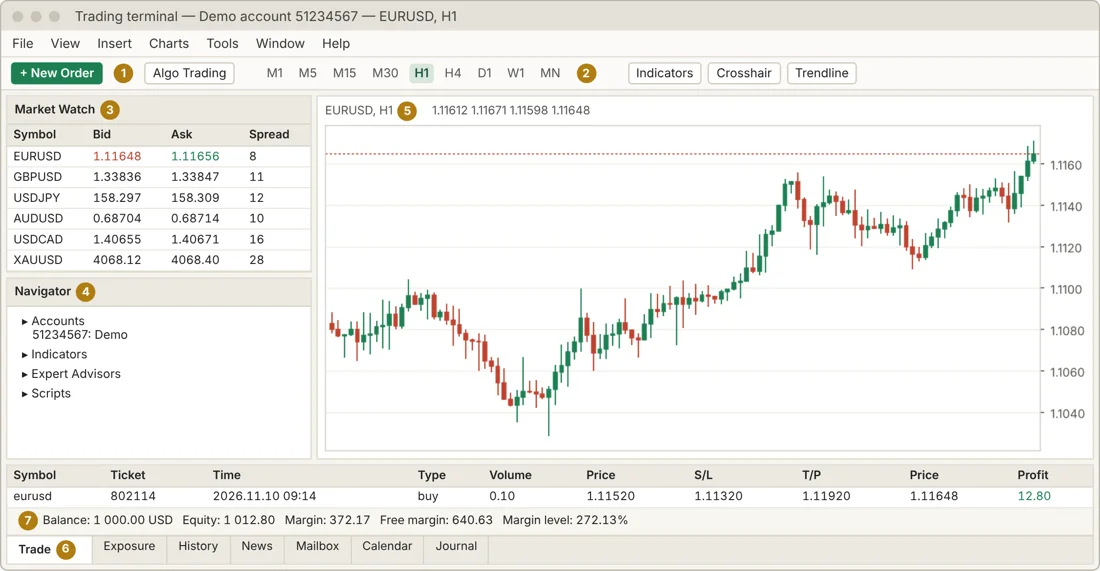
- 1.New Order opens the order window (shortcut: F9). Chapter 12 covers it.
- 2.Timeframes change how much time each candle on the chart covers: M1 is one minute, H1 is one hour, D1 is one day, W1 is a week, and MN is a month.
- 3.Market Watch lists your symbols with their bid, ask, and spread. Right-click it and choose Symbols or Show All to add more. Drag a symbol onto the chart to open it.
- 4.Navigator shows your accounts, indicators, and automated tools (called Expert Advisors).
- 5.The chart window is where you'll spend most of your time.
- 6.The Toolbox at the bottom has your open trades on the Trade tab, closed trades on History, and the platform's messages on Journal. If it's missing, press Ctrl+T.
- 7.The account summary shows balance, equity, margin, free margin, and margin level, the numbers you met in Chapter 6.
Setting up a clean chart
A new MetaTrader chart can look like a 1990s screensaver. Here's how to make it easy on the eyes.
- 1.Switch to candlesticks using the candle button on the toolbar (or Alt+2 in MT4).
- 2.Right-click the chart, choose Properties (or press F8), and pick colours you like. Green or white for up candles and red or black for down candles is the usual choice.
- 3.In the same window, turn the grid off and turn Show Ask line on. MetaTrader charts show the bid price by default, and seeing the ask too will save you confusion later.
- 4.Use the + and − keys or your mouse wheel to zoom until you can see clearly separated candles.
- 5.Right-click the chart and choose Template → Save Template so every new chart looks the same.
A tour of TradingView
TradingView is a charting website and app that lots of traders love for its clean charts, drawing tools, and alerts. You can use it for free with some limits, or pay for more features.
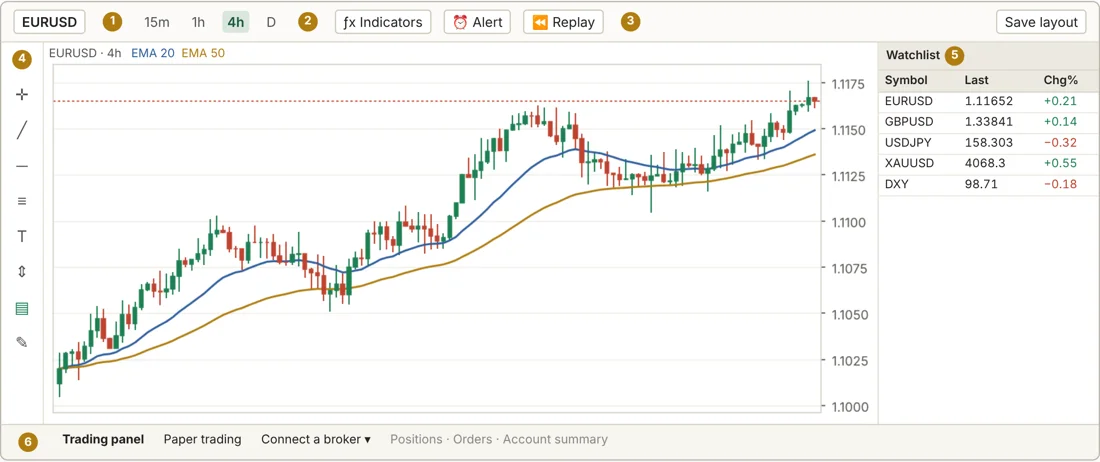
- 1.Symbol search: type a pair like EURUSD. You'll see the same pair from several data sources; if your broker is listed, choose its version.
- 2.Timeframes: the same idea as in MetaTrader.
- 3.Indicators, alerts, and replay: add indicators, set price alerts that ping your phone, and replay old price action candle by candle for practice.
- 4.Drawing tools: trendlines, horizontal lines, Fibonacci tools, and the long and short position tools, which draw your entry, stop, and target as coloured boxes.
- 5.Watchlist: your list of symbols.
- 6.Trading panel: this is where you trade, either with paper trading (TradingView's own demo) or by connecting a broker that supports TradingView.
Not every broker connects to TradingView, and an MT4 or MT5 account can't be logged in to TradingView directly. Lots of people therefore do their analysis on TradingView and place their trades in MetaTrader. That works perfectly well. Just remember that prices from different data sources can differ by a pip or two, because each broker and data feed has slightly different prices. For your entries and stops, the only prices that count are your broker's.
Trading on your phone
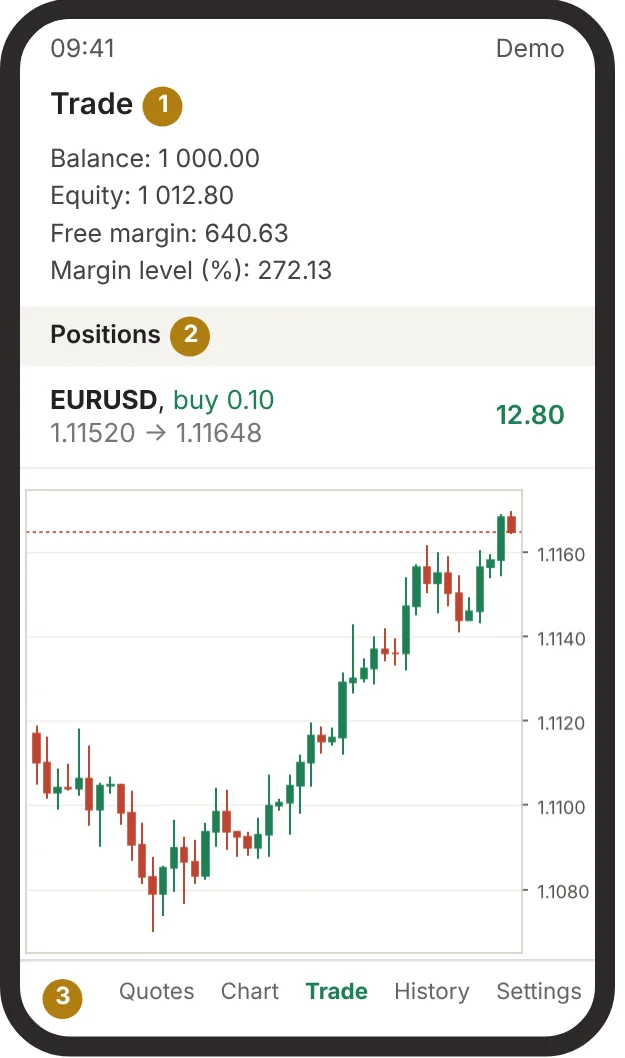
The mobile apps are great for checking trades and managing them when you're out. They're not great for careful analysis on a tiny screen while you're on the bus. A good habit is to do your analysis on a computer and use your phone to keep an eye on things.
Kevin downloaded an app called "MetaTrader Pro Max Gold" from a link in a group chat because it "had better signals." It showed him thousands of dollars of profit, then asked for a "release fee" to withdraw. It was a fake app connected to nobody. Get your platform from your broker's website or the official app store, and check who the app's publisher is.
Log in to your demo on MT5 and on your phone. Add GBP/USD, USD/JPY, and AUD/USD to Market Watch. Open an EUR/USD chart, switch to candlesticks, turn on the ask line, set the H1 timeframe, and save your template. Then open TradingView, search for EUR/USD, and compare the price with your broker's. Write down the difference.
Key terms from this lesson
- Trading platform
- software for viewing prices and charts and for placing and managing trades.
- MetaTrader 4 / 5 (MT4 / MT5)
- widely used trading platforms made by MetaQuotes and offered by many brokers.
- TradingView
- a charting and analysis platform that can also connect to some brokers for trading.
- Market Watch
- the MetaTrader window listing symbols with their bid and ask prices.
- Toolbox
- the MetaTrader window showing open trades, history, and messages.
- Timeframe
- the length of time each candle or bar on a chart represents.
- Paper trading
- simulated trading with virtual money.
Learn this in a 5-minute interactive lesson
Real charts and practice questions. Free, no sign-up needed.
Related guides
Pajama Markets provides education, not financial advice. Trading forex, crypto and leveraged products carries a high risk of losing money. Practise on a demo account first.