Forex Trading · lesson 12 of 33
Placing, Managing, and Closing Trades Explained
Learn this in a 5-minute interactive lesson
Real charts and practice questions. Free, no sign-up needed.
The order window
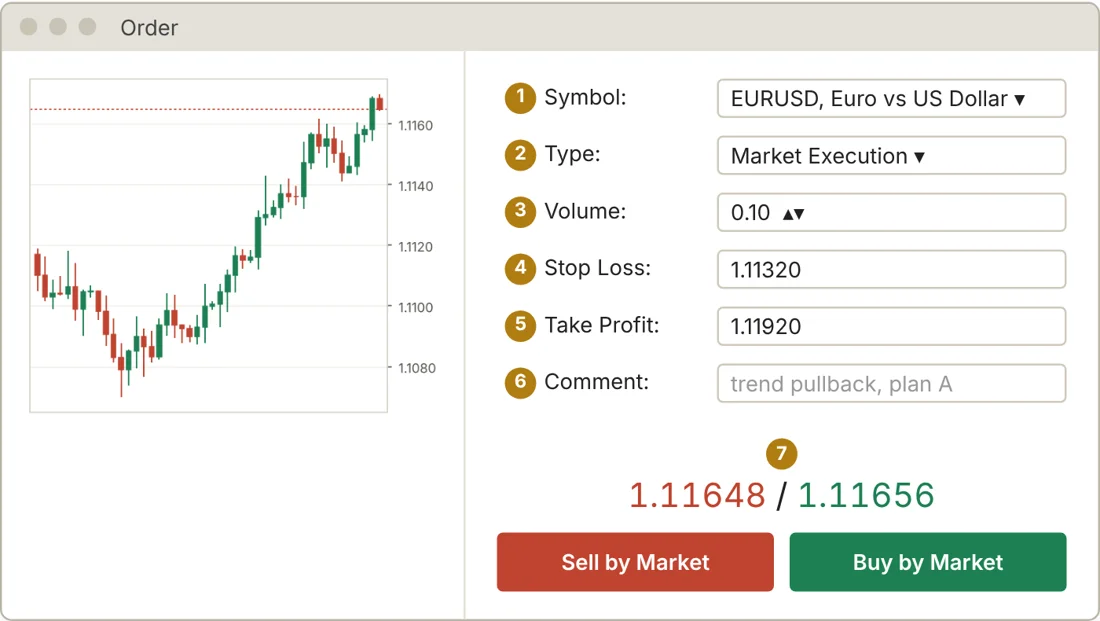
A market order opens a trade straight away at the current price: at the ask if you buy, and at the bid if you sell.
- 1.Click the symbol in Market Watch so it's selected, then press F9 or click New Order.
- 2.Check the Symbol is the pair you mean. It's surprisingly easy to trade GBP/USD when you meant EUR/USD.
- 3.Leave Type on Market Execution (some brokers call it Instant Execution).
- 4.Type your Volume in lots, worked out with the method in Chapter 28. While you learn, that's usually 0.01 to 0.10.
- 5.Type your Stop Loss and Take Profit prices. Never skip the stop loss.
- 6.Add a short Comment, like "pullback to support," so your History tab tells you why you took the trade.
- 7.Click Buy by Market or Sell by Market.
- 8.Check the Trade tab. Your position should appear there with its volume, entry price, stop loss, and take profit.
On a phone, the steps are almost the same: go to Quotes, tap the pair, tap Trade (or New order), set the volume, stop loss, and take profit, and tap Sell or Buy. On TradingView, open the trading panel, then use the Buy and Sell buttons on the chart or the order panel, where you can tick boxes to add a stop loss and take profit and even drag them into place on the chart.
Stop loss and take profit
A stop loss (SL) is an order that closes your trade automatically if the price moves against you to a level you've chosen. It's the point where you say, "I was wrong, and that's fine." A take profit (TP) closes your trade automatically when the price reaches your target.
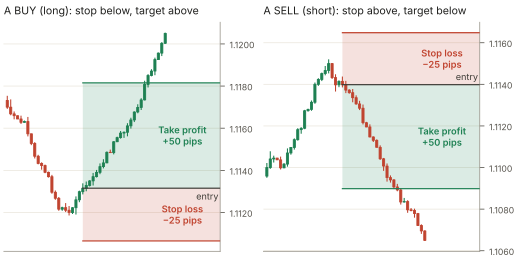
There's one detail that confuses traders for years, so learn it now. Buy trades open at the ask and close at the bid. Sell trades open at the bid and close at the ask. So a buy's stop loss and take profit are triggered by the bid price, and a sell's are triggered by the ask. MetaTrader charts show the bid by default. That means a sell trade's stop can be hit even when the bid line on your chart never touched it, because the ask (which is higher by the spread) did. This is especially common when spreads widen around rollover or news. It's one reason you turned on the ask line in Chapter 11, and one reason never to place a stop exactly on an obvious price level.
Pending orders: trading while you're away
A pending order is an order to buy or sell automatically when the price reaches a level you choose. It's useful when you've done your analysis and know where you want to get in, but the price isn't there yet. There are four basic kinds:
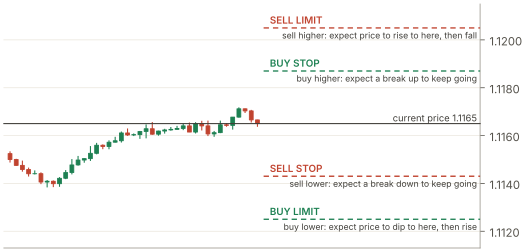
- Buy limit: buy below the current price. Use it when you expect a dip to a support level and then a rise.
- Sell limit: sell above the current price. Use it when you expect a rise to a resistance level and then a fall.
- Buy stop: buy above the current price. Use it when you want to buy only if the price breaks upwards.
- Sell stop: sell below the current price. Use it when you want to sell only if the price breaks downwards.
To place one in MetaTrader, open the order window, change Type to Pending Order, choose the kind of order, type the price, add a stop loss and take profit, and choose when it expires. MT5 also has buy stop limit and sell stop limit orders, which place a limit order only after a stop price is reached. You won't need those for a while.
If you're not sure which pending order you need, ask yourself two questions: "Am I buying or selling?" and "Is my entry price better than the current price, or worse?" Better means limit. Worse means stop.
Changing and closing trades
- To change a stop loss or take profit, double-click the trade in the Trade tab and choose Modify, or drag the SL and TP lines on the chart.
- To close a trade, click the small × at the end of its row in the Trade tab, or double-click it and press Close.
- To close part of a trade, double-click it, change the volume to the amount you want to close, and press Close. For example, closing 0.05 lot of a 0.10 lot trade locks in half the profit and leaves the rest running.
- A trailing stop moves your stop loss along behind the price as it moves in your favour. In MetaTrader, right-click the trade and choose Trailing Stop. Be aware that MetaTrader's trailing stop runs on your own computer, so it stops working if you close the platform.
- To delete a pending order, right-click it in the Trade tab and choose Delete. Forgotten pending orders are a classic way to wake up in a trade you'd completely forgotten about.
Hedging and netting
MetaTrader 5 accounts come in two kinds. On a hedging account, which most forex brokers use, each trade is a separate position, so you can even be long and short the same pair at once (though that's rarely a good idea). On a netting account, there's only ever one position per symbol, and a new trade in the opposite direction reduces or reverses it. Your broker's account details tell you which one you've got.
| Mistake | What happens | How to avoid it |
|---|---|---|
| Typing 1.00 instead of 0.01 | A trade 100 times bigger than intended | Read the volume box before every click |
| Stop loss on the wrong side | The platform shows "Invalid stops," or the order is rejected | Buy: stop below. Sell: stop above |
| Stop too close to the price | Rejected, or hit by normal noise and spread | Check the minimum stop distance in Specification, and leave room |
| Wrong pending order type | The order triggers immediately or never triggers | Better price = limit. Worse price = stop |
| Forgotten pending order | You get filled weeks later on an old idea | Set an expiry, and check the Trade tab daily |
| Trading at rollover | Huge spreads, odd fills | Avoid opening trades around 5 p.m. New York time |
Kevin opened a trade without a stop loss because he'd "keep an eye on it." Then his phone died. When he got home, the trade was 140 pips against him. A stop loss you mean to add later isn't a stop loss. Add it before you click Buy or Sell, or in the first few seconds after.
On your demo account, using 0.01 lot each time:
- 1.Place a market buy on EUR/USD with a stop loss 20 pips below and a take profit 40 pips above.
- 2.Place a market sell on GBP/USD with a stop 20 pips above and a target 40 pips below.
- 3.Place a buy limit 15 pips below the current EUR/USD price, and a sell stop 15 pips below the current USD/JPY price.
- 4.Drag the stop loss on your first trade 5 pips further away, then back again.
- 5.Close half of one trade, and then close the rest.
- 6.Delete any pending orders that are still open, then open the History tab and find every trade you just made.
Key terms from this lesson
- Market order
- an order to buy or sell immediately at the current price.
- Pending order
- an order to buy or sell automatically when the price reaches a chosen level.
- Buy limit / sell limit
- pending orders to buy below or sell above the current price.
- Buy stop / sell stop
- pending orders to buy above or sell below the current price.
- Stop loss (SL)
- an order that closes a trade at a chosen loss.
- Take profit (TP)
- an order that closes a trade at a chosen profit.
- Trailing stop
- a stop loss that follows the price as it moves in your favour.
- Partial close
- closing part of a position and leaving the rest open.
Learn this in a 5-minute interactive lesson
Real charts and practice questions. Free, no sign-up needed.
Related guides
Pajama Markets provides education, not financial advice. Trading forex, crypto and leveraged products carries a high risk of losing money. Practise on a demo account first.